Editor
A dialect-aware SQL editor with schema autocomplete, linting, and statement-at-cursor execution.
Overview
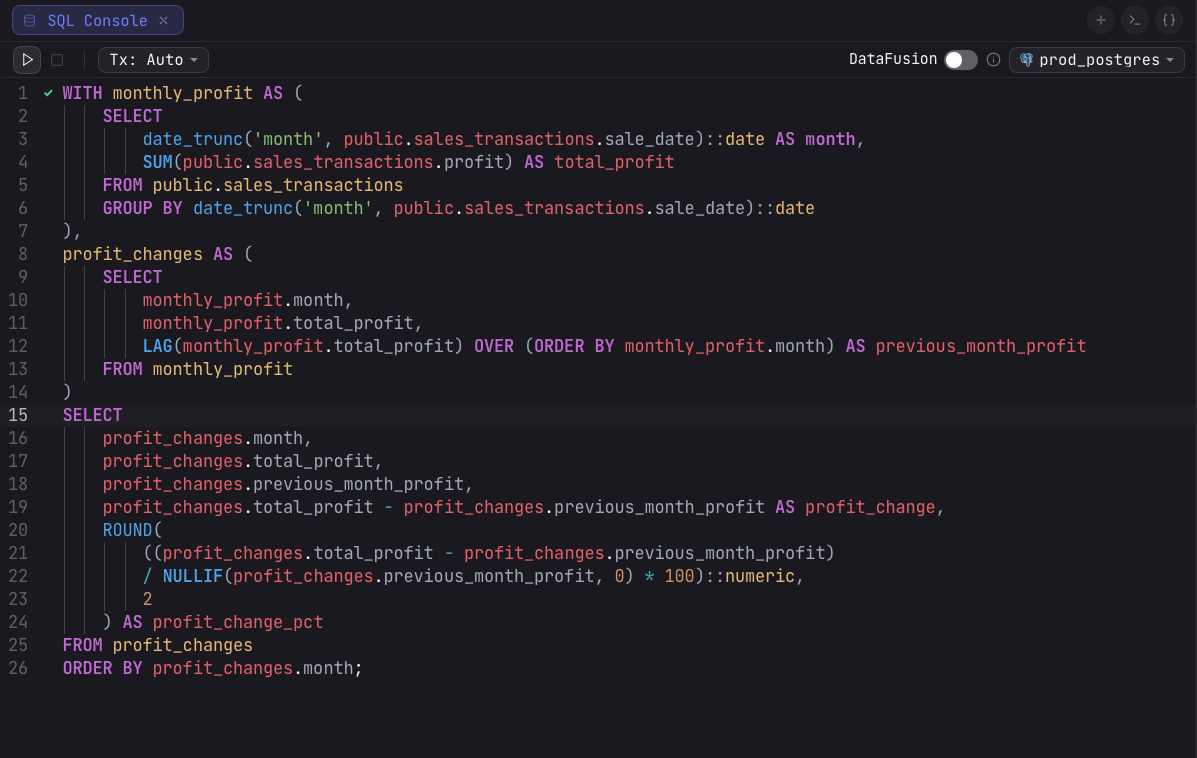
Every console tab and SQL file opens in the same editor, bound to a single connection. The editor handles syntax highlighting, schema-aware autocomplete, inline linting, find and replace, bracket matching, auto-closing brackets, and indentation guides.
Beyond plain SQL, the same editor drives the Redis CLI, Elasticsearch REST, MongoDB shell, Jupyter notebook cells, and dbt / SQLMesh model files. Each gets its own completion provider, so the suggestions match the surface you are typing into.
Dialect awareness
The editor detects the SQL dialect from the connection kind, so keywords, functions, and string-quoting rules are highlighted correctly for your engine:
- PostgreSQL — Postgres and Redshift.
- MySQL — MySQL and MariaDB.
- SQLite — SQLite and DuckDB.
- MSSQL — SQL Server.
- PL/SQL — Oracle.
- BigQuery — backtick identifiers and double-quoted strings.
- Generic SQL — every other engine, with a broad keyword set.
Autocomplete
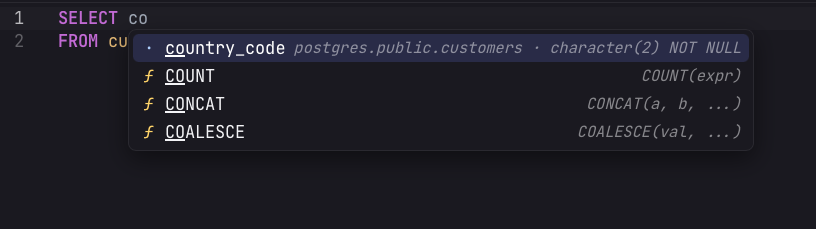
Autocomplete is schema-aware and draws from the cached schema of the tab's connection. As you type, it suggests:
- Tables and views from the connection schema, with schema prefixes.
- Columns, narrowed to the tables referenced in the current
FROMandJOINclauses. - CTEs and subquery aliases defined earlier in the same statement.
- SQL keywords for the active dialect.
- Functions, including dialect-specific built-ins such as
array_aggon Postgres orGROUP_CONCATon MySQL.
The menu opens as you type and also pops automatically at clause boundaries (after
FROM, GROUP BY, and ORDER BY). In dbt and SQLMesh model
files it additionally completes ref(), source(), and model names.
Running queries
Press ⌘↩ to run. Arris picks what to execute based on context, in this order:
- Selection — if text is highlighted, only that text runs.
- Statement under the cursor — otherwise the single statement around the cursor runs. Statements are split on unquoted semicolons, ignoring semicolons inside strings and comments.
- Whole buffer — if the cursor is not inside any statement, the entire editor runs.
A gutter indicator next to the running statement shows a live spinner and elapsed timer, then a check on success or a cross on error. The run shortcut is the only run-related action bound by default; Stop query ships unbound and can be assigned in Settings → Keymap.
Transactions
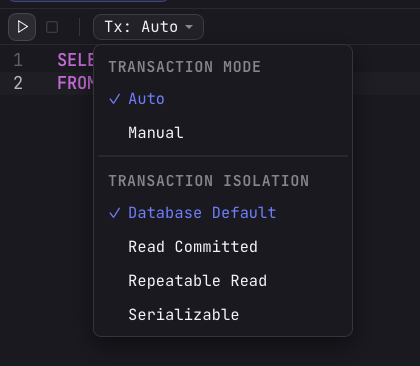
The Tx control in the editor toolbar sets how runs are committed. It has two modes and an isolation level, both per connection. Transactions apply to the relational engines that support them: Postgres, Redshift, MySQL, MariaDB, SQLite, DuckDB, SQL Server, Oracle, and Snowflake. On engines without transactions, the control is hidden.
- Auto — the default. Each run commits immediately on its own.
- Manual — the first statement opens a transaction and holds it open. Every later run joins the same transaction until you commit or roll back.
The isolation level is chosen in the same dropdown and takes effect when the transaction opens:
- Database Default — no isolation clause is sent; the server's configured default applies.
- Read Committed
- Repeatable Read
- Serializable
In manual mode the toolbar adds three controls: commit, roll back, and a toggle for the transaction panel. Commit and roll back are enabled once the transaction has uncommitted work; while that work is pending you cannot switch back to Auto without first committing or rolling back.
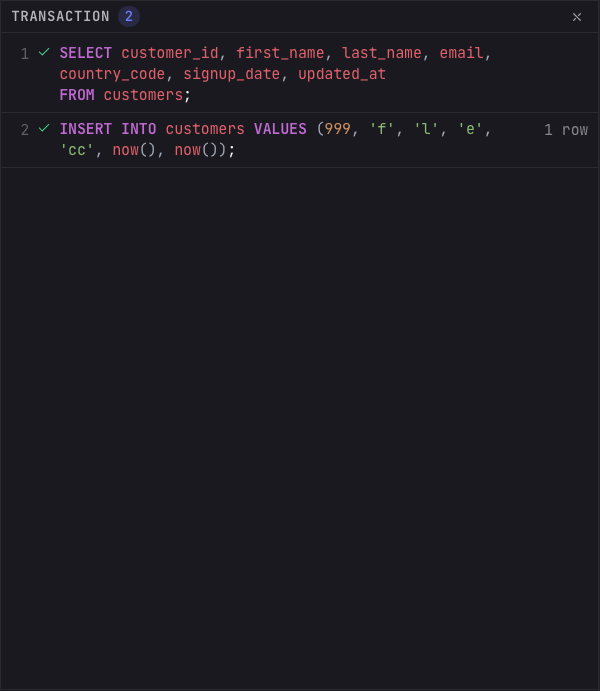
The transaction panel lists the statements run in the open transaction, numbered in order, each with a success or error marker, its SQL, any error message, and the rows it affected. The transaction stays open on its connection even if you switch tabs, and is held in memory only, never persisted.
Linting & highlighting
The editor highlights identifiers by role: tables, columns, aliases, and functions each get a distinct color, so the shape of a query is readable at a glance. In federated queries, the leading connection segment of a dotted table reference is tinted with that source's color.
A built-in linter underlines incomplete or misspelled keywords and references that do not match the cached schema, with a warning marker in the gutter. Indentation guides and an optional border around the active statement help you keep long scripts oriented.