SSH tunnels
Reach databases behind firewalls by routing the connection through a bastion host.
SSH tunnels
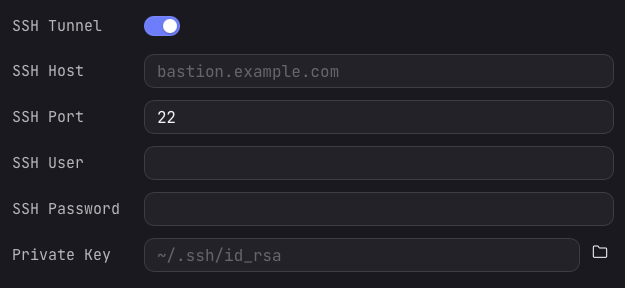
Arris can open an SSH tunnel before connecting to a database, routing all traffic through a secure channel to a bastion host. Configure the tunnel in the SSH Tunnel tab of the connection form. The following fields are available:
- SSH Host — the hostname or IP address of the bastion server.
- SSH Port — the SSH port on the bastion (default
22). - SSH User — the username for SSH authentication.
For authentication, Arris supports two methods:
- Password — enter the SSH password directly. It is stored in the macOS Keychain, never on disk.
- Private key file — select an SSH private key file (e.g.,
~/.ssh/id_ed25519). If the key is passphrase-protected, enter the passphrase and it will be stored in the Keychain.
A private key takes priority when both are supplied; in that case the password field is treated as the key's passphrase.
The tunnel is opened on demand when you connect and closed automatically when the connection is released. Arris allocates a random local port for each tunnel, so multiple SSH-tunneled connections can run simultaneously without port conflicts.
When to use SSH
Use an SSH tunnel when the database server is not directly reachable from your machine. Common scenarios include:
- Private VPC — the database is inside a cloud VPC with no public IP. You SSH to a bastion host that has access to the internal network.
- Firewall restrictions — the database port is blocked by a firewall, but SSH (port 22) is allowed.
- Corporate VPN alternative — instead of connecting to a VPN, you can tunnel through a jump server that your team maintains.
If the database is directly reachable (e.g., a local development server, a cloud database with a public endpoint, or you are already on the VPN), you do not need an SSH tunnel. Use SSL/TLS instead to encrypt the connection.