Connections
Connect to modern data warehouses and systems.
What is a connection?
A connection in Arris is a named set of encrypted credentials that tells the app how to reach a single database server or service. Each connection stores the host, port, authentication details, and optional SSH tunnel or SSL configuration. Passwords are persisted in the macOS Keychain, never written to disk in plain text.
Arris ships with bundled drivers for every supported database engine. You do not need to install any external libraries, JDBC jars, or ODBC connectors. Every driver is compiled into the app and versioned alongside it, so there are no compatibility surprises after updates.
Adding a connection
Open the new-connection dialog
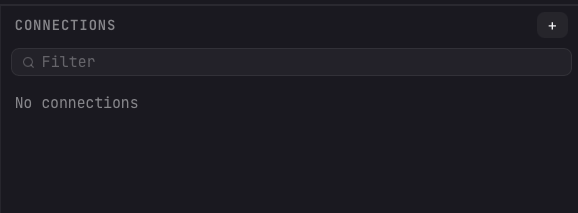
Click the + button at the top of the Connections sidebar. The New connection dialog opens.
Pick a database kind
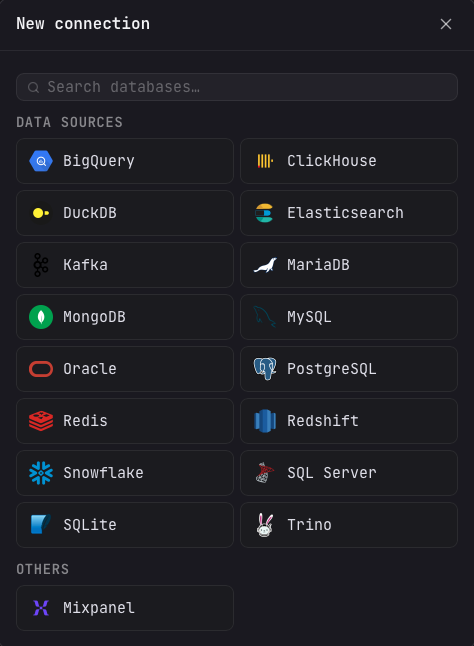
Pick the engine from the New connection dialog. Search by name or choose from the grid of supported sources. Each kind comes with a bundled native driver, no extra downloads. The form fields adapt to the selected engine (for example, Snowflake shows an Account field instead of Host/Port).
Fill in the form or paste a URI
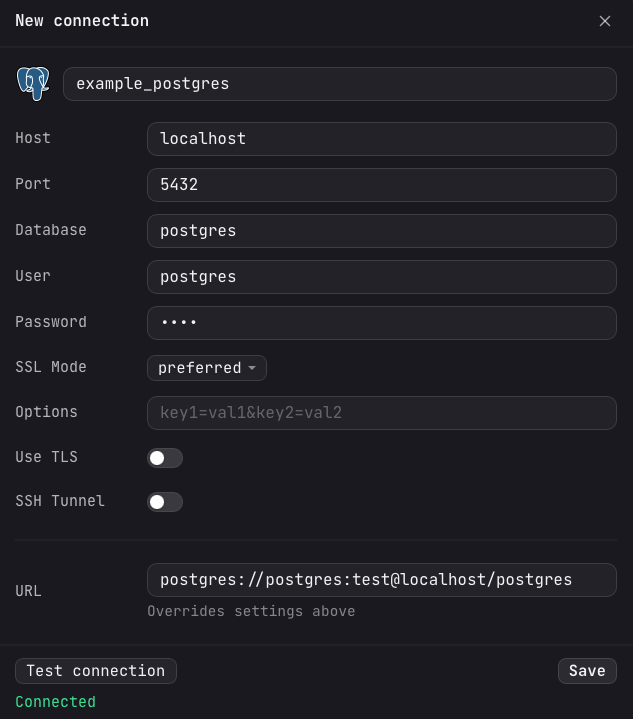
Enter the host, port, database name, and credentials manually, or paste a connection
URI into the URL field and Arris will parse it automatically. The URL
overrides the individual settings above. Supported URI schemes include
postgres://, mysql://, mongodb+srv://, and more.
Test, then save
Click Test connection to verify the connection. If the test passes, click Save. The connection appears in the sidebar immediately, and it is ready to be used for queries.
Edit your connections
To change a saved connection, click the Gear icon on the connection in the sidebar. The connection form reopens with its current settings, where you can update the host, credentials, SSL, or SSH tunnel and save your changes.
Expanding schemas, tables, columns
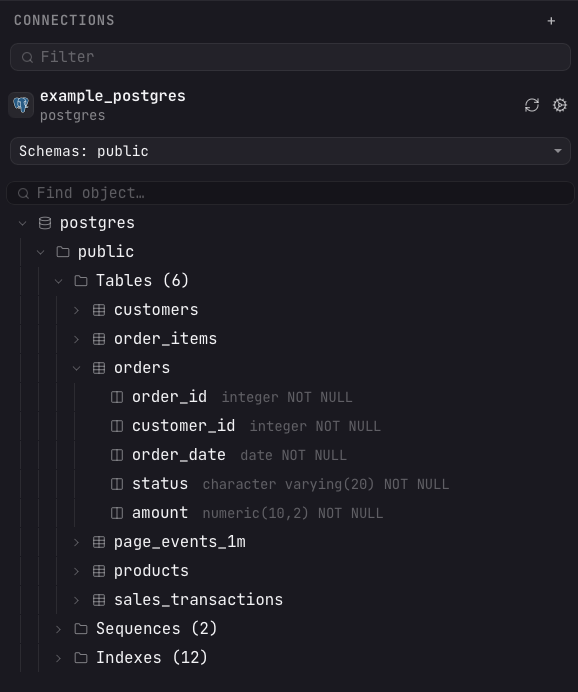
When you connect to a database, Arris fetches its list of schemas (or databases, where applicable) and caches it locally for fast navigation. For sources with many schemas, a schema's tables, views, and columns load on demand the moment you select that schema, so connecting stays fast even against large servers. Embedded and flat sources such as SQLite, DuckDB, and Redis load their whole tree up front.
Use the Schemas selector under a connection to choose which schemas to load. Nothing is selected by default, so the tree starts empty until you pick a schema. Pick one or several, and Arris fetches each one's objects: tables, views, materialized views, routines, sequences, and columns, each with its data type. Your selection is remembered, so reconnecting reloads the same schemas automatically.
Double-click any table or view to open it in a new tab. The tab shows the first 100 rows with sortable columns and inline filtering.
~/Library/Application Support/Arris/cache/*.sqlite.
The cache is refreshed automatically when you connect, or manually with the refresh button on each connection.
Cache files are excluded from Time Machine by default.
Searching inside a connection
Two filter bars keep large trees navigable. The Filter box at the top of the sidebar filters the connection list itself, while the Find object box under a connection filters its schema tree in place, hiding any database, schema, table, or column whose name does not match as you type.
Viewing tables
Double-click a table or view in the schema tree to open it in a table tab. The tab runs a browse query automatically and shows the rows in the same results grid used by the editor, with sortable columns, an inline filter row, and pagination. A Refresh table data button in the tab header re-runs the browse query.
Table tabs backed by an editable object (tables, not views) let you change data in place and push it back to the database. Edits are staged locally first, so you review everything before anything is written:
- Edit a cell — double-click a cell, type a new value, and commit. The change is staged with a distinct cell style.
- Insert a row — click the insert button () to add a draft row, then fill in its cells.
- Delete a row — select a row and click the delete button () to mark it for removal.
- Reset () — discard every staged change and return to the queried rows.
- Upload () — apply the staged changes. Arris keys each row by its primary key and generates the matching
INSERT,UPDATE, andDELETEstatements, which are recorded in the run history.
Editing is only available on a table tab. An ordinary query result, a view, or a federated result is read-only.
Show definitions
To read an object's definition, select it in the schema tree and press ⌘B, or
right-click it and choose Show Definition. Arris fetches the object's DDL and
opens it in a read-only tab titled <name> (DDL), marked with a
Read-only chip.
Show Definition works on schemas, databases, tables, views, materialized views, foreign tables, sequences, indexes, functions, procedures, triggers, and events. When the engine cannot produce a definition for an object, the tab opens with a note that none is available.
Troubleshooting
Connection refused
If you see Connection refused, verify that the database server is running and
accepting connections on the configured host and port. Common causes include firewall rules
blocking the port, or an SSH tunnel that has not been configured. Try connecting with
psql, mysql, or mongosh from the same machine to
confirm network-level access.
Self-signed certificate
If the server uses a self-signed or internal CA certificate, Arris will reject the connection by default. To fix this, open the connection settings and add your CA certificate file in the SSL configuration. Alternatively, you can enable Accept invalid certificates for development environments, but this is not recommended for production connections.
Schema cache out of date
Arris caches schema metadata for fast navigation. If you have recently created or dropped tables outside of Arris, the sidebar may not reflect those changes immediately. Right-click a schema in the tree and select Refresh Schema to re-read just that schema, or click the refresh button on the connection to refresh everything. To keep schemas fresh automatically, set an interval under Settings → Connections → Auto-refresh.