Version control
Track changes to your files with built-in Git support without leaving Arris.
Overview
Arris includes a built-in Git client powered by gix, a pure-Rust Git
implementation, with the system git CLI used for a few operations such as
fetch, pull, and merge. When you open a project folder that contains a .git
directory, the Git changes pane activates automatically. You can stage hunks or whole files,
write commits, fetch, pull, push, switch branches, resolve merge conflicts, browse history,
and review diffs — all without switching to a terminal or external Git client.
Opening a repository
Git features activate when you open a project folder (⌘O) that is inside a
Git repository. Arris detects the .git directory and loads the current branch,
file statuses, and recent commit history. If the folder is not a Git repository, the Git
changes pane stays empty.
You can also clone a repository directly from Arris. On the welcome screen, click Clone… under Open existing, then provide the remote URL and a destination path. Arris clones the repository and opens it as a project automatically.
File status
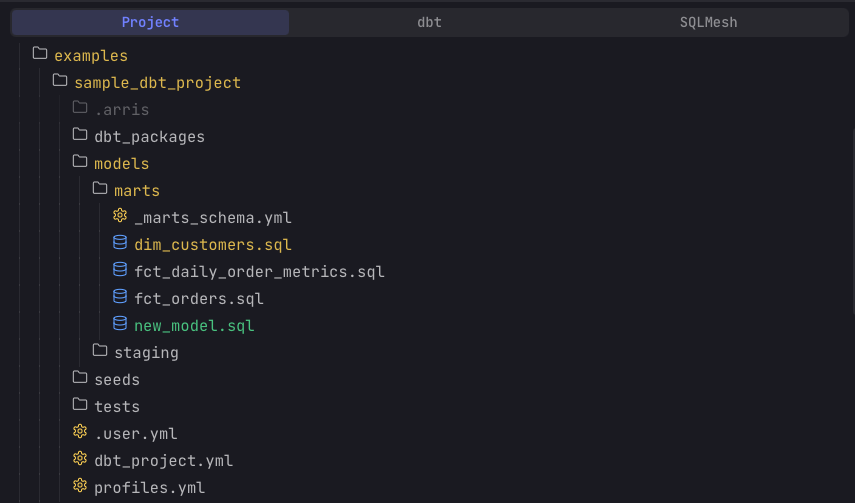
Arris color-codes Git status directly in the project file tree, so you can spot edits while browsing without opening the Git pane. Rather than a letter badge, a changed file's name is tinted by its status, and its parent folders inherit the tint:
| Git status | How Arris shows it |
|---|---|
| Modified | The file name is tinted yellow. |
| Added / Untracked | The file name is tinted green — new content, whether or not it is staged yet. |
| Deleted | The folder with deleted files is tinted red. |
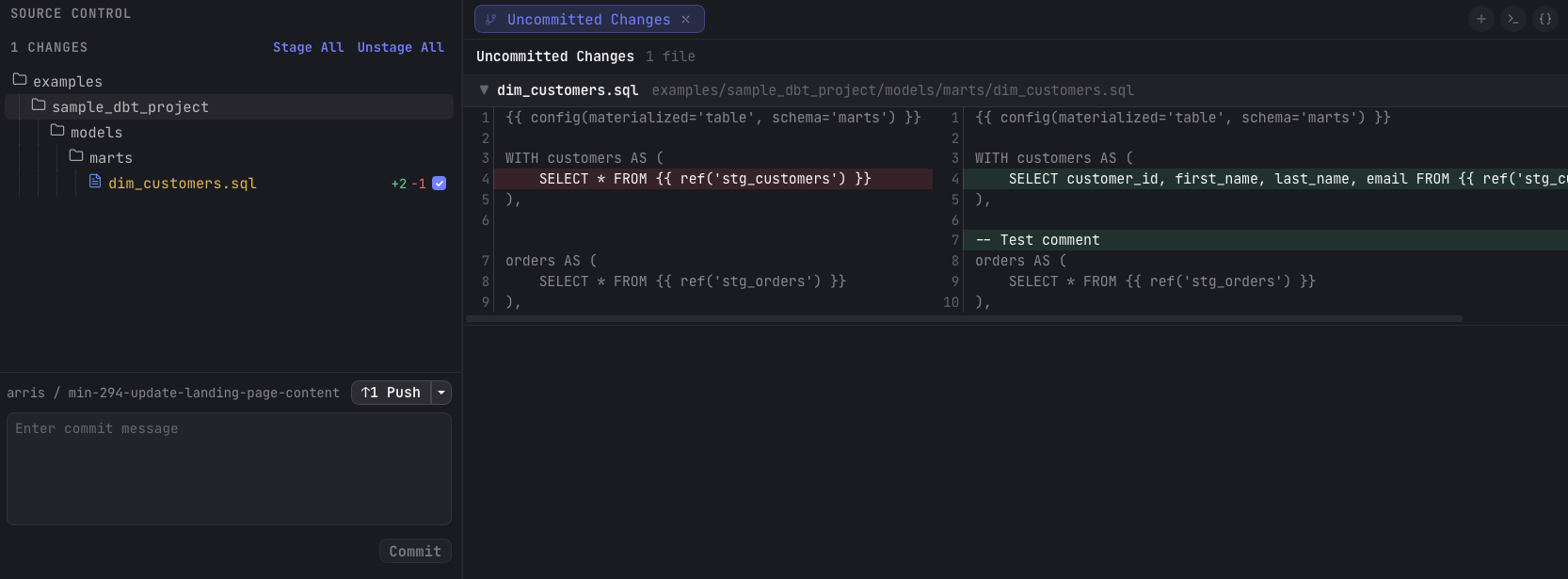
The Git changes pane uses the same color coding and lists every changed file as a tree, with
Stage All / Unstage All actions, a per-file checkbox to stage
or unstage, and diff stats (+N −N) for the lines added and
removed. Status comes from Git's porcelain output, so a file can carry separate index and
working-tree states — for example, staged and then modified again.
Staging & committing
You can stage at the file level or the hunk level:
- Stage or unstage a file — toggle the checkbox next to a file. Checked means staged into the index.
- Stage All / Unstage All — move every changed file in or out of the index at once.
- Discard changes — from a file's context menu, revert it to the last committed state.
- Stage or discard a single hunk — use the diff viewer or the editor gutter to stage or revert one hunk at a time without touching the rest of the file.
Once at least one file is staged, type a message in the commit box at the bottom of the pane and press ⌘↩ or click Commit. The Commit button is enabled only when the index has staged files and the message is non-empty. The commit is created locally and the file list refreshes immediately.
Syncing with the remote
Sync actions live in a split-button in the pane header. The primary action runs on click; the dropdown exposes the full set:
| Action | What it does |
|---|---|
| Fetch | Fetch all remotes without changing your working tree. |
| Pull | Pull from the upstream branch and merge into the current branch. |
| Pull from… | Pull from a specific remote and branch. |
| Push | Push local commits to the upstream branch. |
| Push to… | Push to a specific remote and branch. |
| Force push | Force-push the current branch (enabled only when an upstream is configured). |
An ahead/behind indicator shows how many commits your branch is ahead of or behind the remote, so you know when to push or pull. If a pull produces conflicts, Arris opens the conflict resolver automatically.
Branches & worktrees
The top bar shows the current branch name. Click it to open the branch picker, which lists local and remote branches with their upstream tracking status. Type to filter, then select a branch to check it out. You can also delete a branch from the picker.
If your project uses Git worktrees, the top bar also shows a worktree picker. It lists each worktree with its path and branch, and lets you switch between them.
Merge conflicts
When a merge or rebase leaves conflicts, the Git changes pane shows a banner reporting that a merge or rebase is in progress along with the number of conflicted files. Click Resolve Conflicts to open the three-way resolver.
- Use Ours — keep the version from your current branch (HEAD).
- Use Theirs — keep the incoming version being merged.
- Both — keep both sides, then edit the merged result by hand.
The resolver shows the base, ours, and theirs versions side by side. After every file is resolved, Continue commits the merge; Abort discards it and returns to the pre-merge state.
Commit history
A footer at the bottom of the changes pane shows the most recent commit. Click the history button () next to it to open the history view: the full commit graph, each commit with its summary, author, timestamp, and branch and tag refs, laid out as a graph. Filter the graph with the search box to find commits by summary or author.
Select any commit to see its full metadata and the list of files it changed, then open a file to view that commit's per-file diff hunks.
Remotes
A collapsible Remotes section in the changes pane lists every configured remote with its URL. Edit a URL inline and save it on blur or by pressing ↩. If a push fails because a GitHub repository has moved, Arris detects the new location and offers a one-click update to the remote URL.
Diff viewer
Click any changed file in the Git changes pane to open a side-by-side diff in the main content area. The diff viewer shows:
- Added lines highlighted in green
- Deleted lines highlighted in red
- Modified lines highlighted on both sides
- Unchanged context collapsed into foldable sections (e.g., “⋯ 12 unchanged lines ⋯”)
Line numbers are shown on both the old and new sides, and the diff is computed per hunk so the
output matches what you would see from git diff in a terminal.
Editor gutter
When you edit a tracked file with uncommitted changes, the SQL editor draws inline diff markers in the gutter next to the line numbers:
- Green bar — newly added lines
- Yellow bar — modified lines
- Red bar — a deletion at this point in the file
The markers update in real time as you type, giving you a constant view of what has changed since the last commit. Click a marker to stage or revert that hunk straight from the gutter.