Install Arris
Download and install Arris in under a minute.
System requirements
- macOS 12 (Monterey) or later
- Apple Silicon (M1 and later) or Intel (x86_64)
- No additional runtimes, JVMs, or drivers required. Everything is bundled.
Download
The recommended way to install Arris is to download the latest release directly from the official website:
The download page detects your architecture automatically and offers the correct
.dmg file. Open the disk image and drag Arris.app into
your Applications folder.
First launch
Gatekeeper prompt
On the first launch, macOS Gatekeeper will ask you to confirm that you want to open an app downloaded from the internet. Click Open to proceed. Arris is signed and notarized by Apple, so this prompt appears only once.
Keychain access
Arris stores database passwords in the macOS Keychain. On first launch, the system will prompt you to allow Keychain access. Click Always Allow so you do not need to re-authorize on every connection.
Welcome screen
Once permissions are granted, Arris opens on the Welcome screen. It is the launchpad for everything you do next.
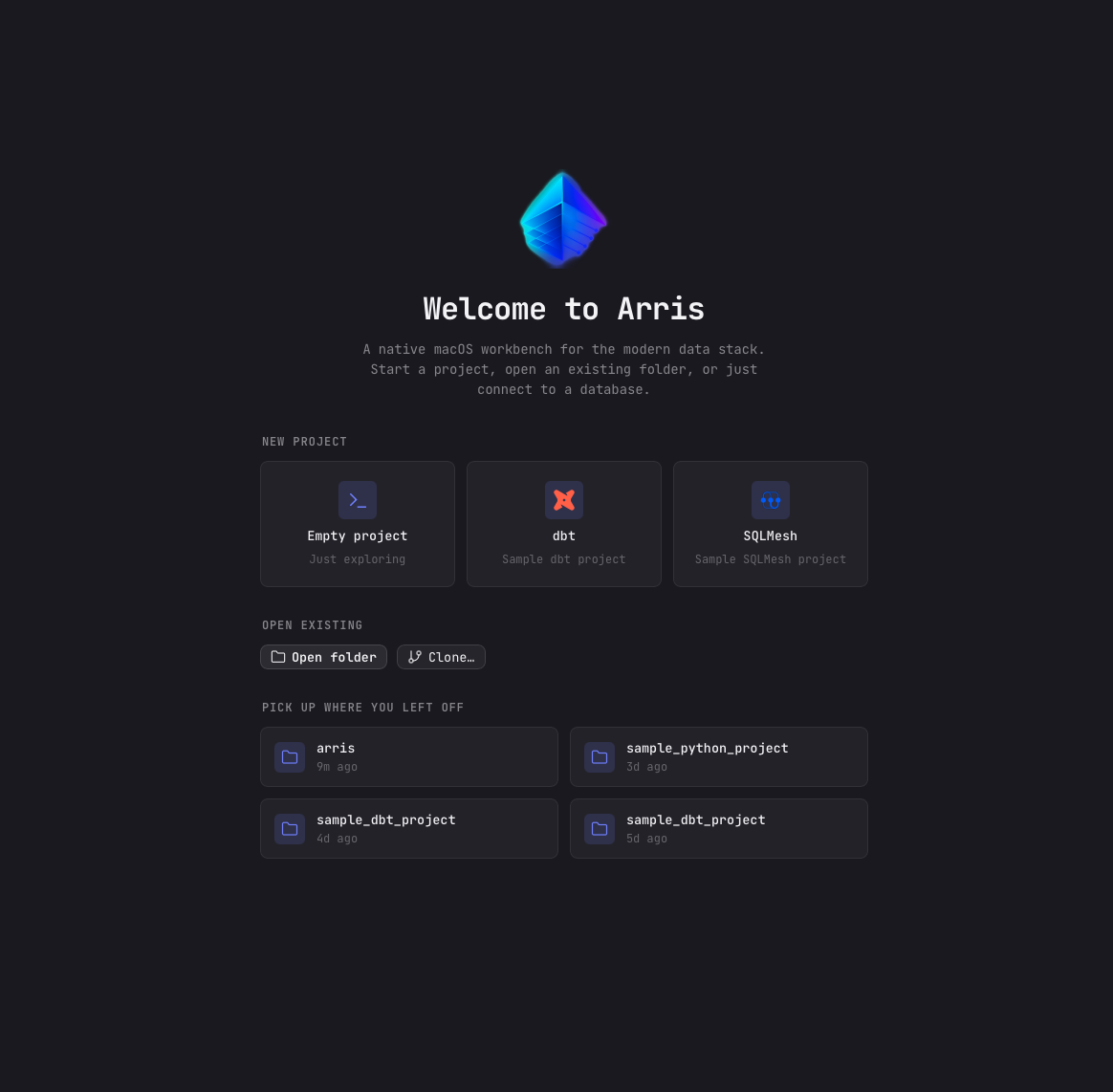
- New project scaffolds an empty workspace or a sample dbt or SQLMesh project to explore.
- Open existing opens a local folder or clones a Git repository straight into Arris.
- Pick up where you left off lists your recent projects so you can resume in one click.
Updating
Arris includes a built-in auto-updater. A button at the right end of the top bar checks for updates: click Check for updates and it reports either that you are on the latest version or that a new one is ready. When an update is available the button becomes Update to vX.Y.Z; click it to download and install. The app restarts automatically with your tabs and connections preserved.
Uninstalling
To remove Arris, drag Arris.app from /Applications to
the Trash. Application data is stored in
~/Library/Application Support/Arris/. Delete this folder to remove
all cached schemas, query history, and settings. Keychain entries are removed automatically
when the app is deleted.